Merchant Guide
Scheduling System: Full Tutorial
Set it up once in 10 minutes, and your weekly availability generates itself from then on, with no more juggling WhatsApp messages.
Before You Start
Register a merchant account
Sign up with your email on the merchant registration page. It takes a minute, no card required.
Claim your venue
Search for your venue in the dashboard and submit a claim request. Our team reviews it and hands the listing back to you.
Know your weekly opening hours
Have your regular weekly opening hours handy (e.g. Mon–Fri 14:00–23:00). It makes setup much faster.
10-Minute Quick Start
Want to get going right away? Follow these 5 steps to start accepting bookings. Full details are below.
- 1Set up "Categories": how many rooms, how many people each
- 2⚡ Bulk-generate your weekly availability templates
- 3"Apply to the next 8 weeks" to generate your slots
- 4Set up your deposit payment method
- 5Reply from the inbox: verify deposit → confirm → WhatsApp
Step-by-Step Guide
Every step has a matching screenshot, so just follow along.
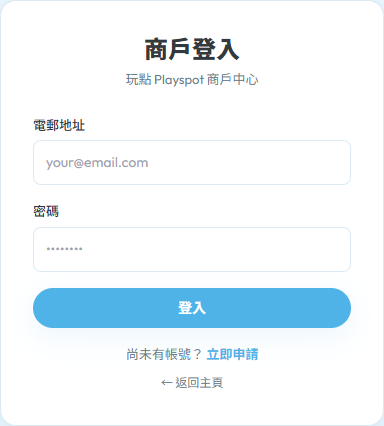
Sign in to the merchant dashboard
Every scheduling setting and booking is managed from this dashboard, so keep your sign-in details handy, you'll use them daily.
- •Sign in to the merchant dashboard with your registered email and password
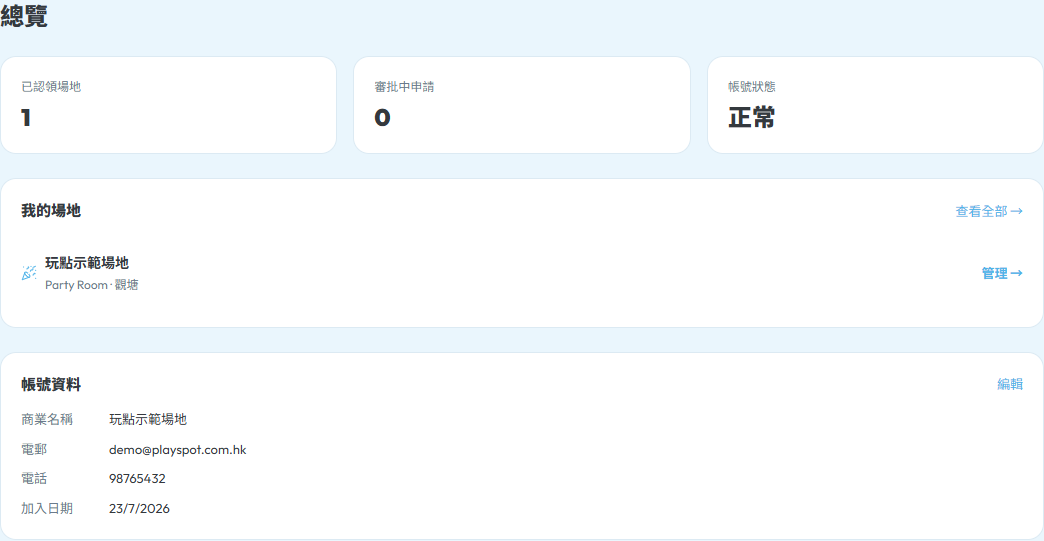
- •You land on the "Overview" tab, showing how many venues you've claimed and how many bookings are pending
- •Five tabs at the top: Overview / My Venues / Bookings / Claim a Venue / Account Settings
Open your venue's management page
Categories, availability, and deposit settings are all managed per venue, so you need to open the right venue first.
- •Click "My Venues" to see all the venues you've claimed
- •Click into one, and the management page header has several buttons, including "Manage Availability"
- •No venue yet? Go to "Claim a Venue" and search for yours to submit a claim


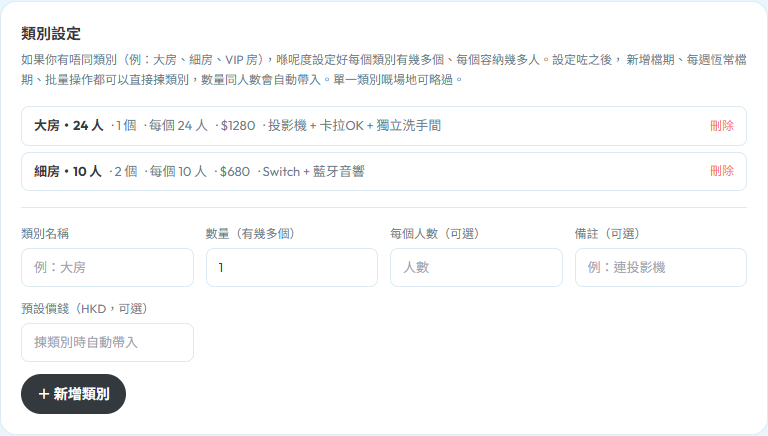
Set up "Categories": how many rooms do you have?
A "Category" is a room type. It tells the system what kinds of spaces you rent out, how many can be booked at once for the same slot, and how many people fit in each. Venues with a single space can skip this step entirely.
- •On the availability page, open the "Categories & Weekly Templates" tab and click "Add Category"
- •Give it a name (e.g. "Large Room", "Small Room"), set "Quantity" (how many of this room type can be booked at the same time slot) and "Capacity" (max people per room)
- •Optionally set a "default price per slot", which auto-fills whenever you generate availability later
- •⚠️ "Quantity" and "Capacity" mean different things: 3 rooms that each seat 10 people → Quantity = 3, Capacity = 10
⚡ Bulk-generate your weekly availability templates
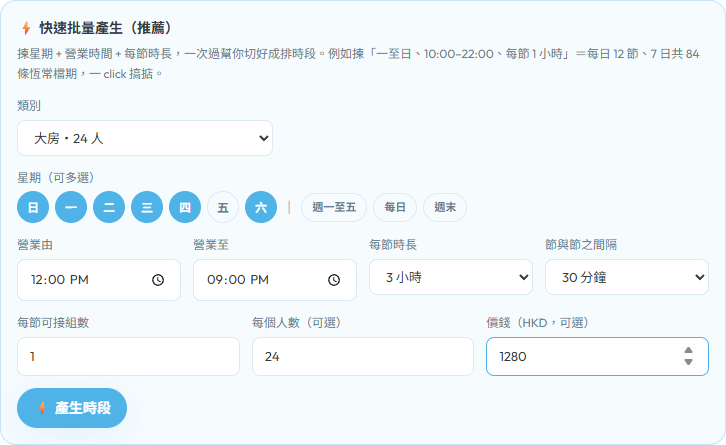
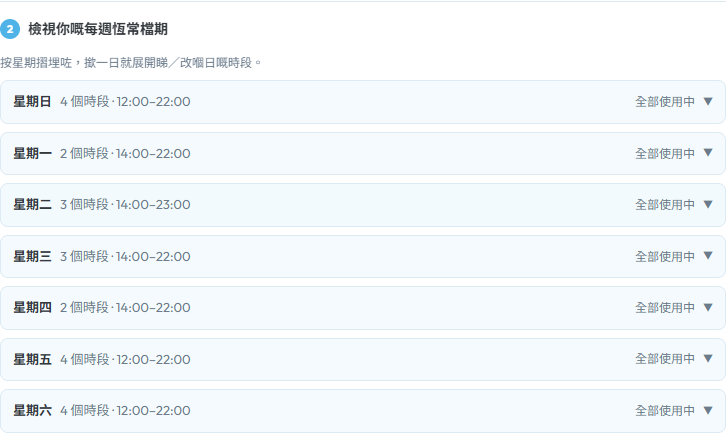
A "weekly template" tells the system which days of the week and which hours you're open for bookings. Set it up once and the system automatically lays out future availability for you.
- •On the "Categories & Weekly Templates" tab, choose "⚡ Bulk Generate (Recommended)"
- •Pick your opening days (you can select more than one weekday) + your opening hours range (e.g. 10:00–22:00)
- •Choose a slot duration (30 min / 1 / 1.5 / 2 / 3 hours, or "one continuous slot") + a gap between slots (none / 15 / 30 / 60 min)
- •Fill in the price and click "Generate Slots", and the system automatically slices that time range into a series of weekly template slots
Review → Apply to the next 8 weeks
Your generated templates need to be "applied" before they become real, bookable slots. This step lays your weekly pattern out across the next 8 weeks in one go.
- •Below the same tab you'll see the list of templates you just generated (which weekday, what time, how many), and you can edit or delete individual entries
- •Once everything looks right, click "Apply to the next 8 weeks", and the system instantly generates the actual availability
- •Just claimed your venue? The system pre-prepares a set of "suggested templates" for you: a single "Activate & Apply" button in the banner at the top does the same thing, generating the next 8 weeks
- •From then on, the system auto-extends on a "rolling window" basis, always keeping 8+ weeks bookable. Days you've closed off (private buyouts / renovations) are never automatically "re-opened"
View your availability: month and day view
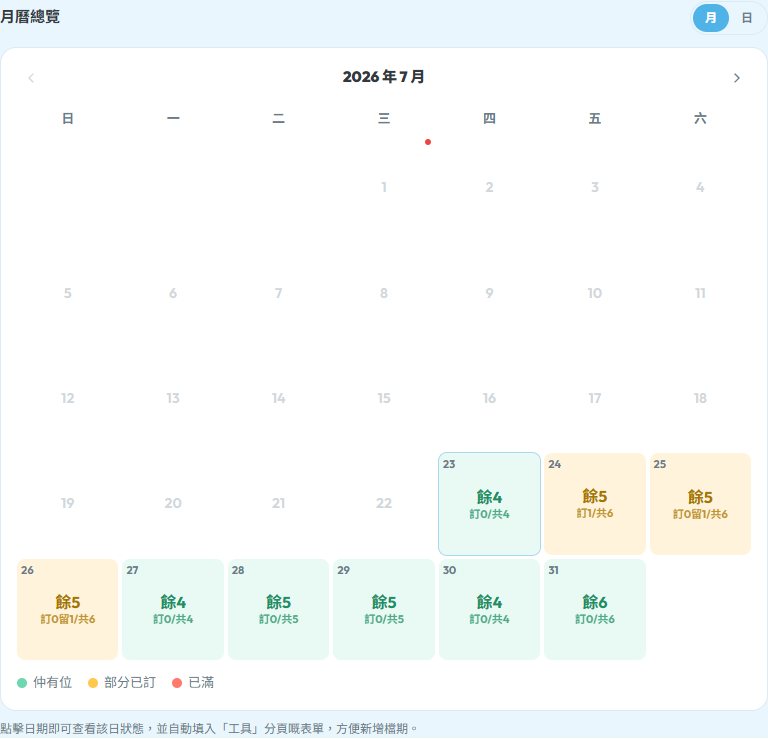
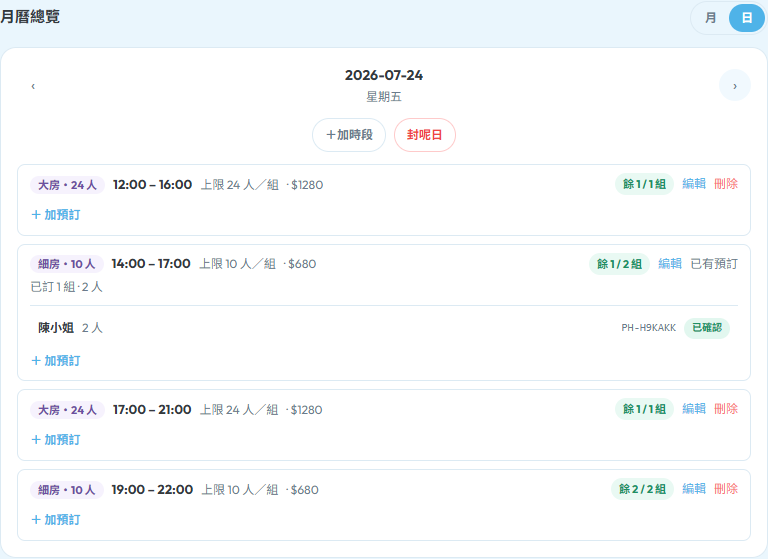
The "📅 Availability" tab is the page you'll open most often. At a glance you can see which days have space, which are full, and which have pending requests.
- •Month view: each day cell shows "total slots / booked / pending / available". Click a day to jump to its details
- •Day view: see every time slot's status for that day, plus the list of bookings placed in each one
- •Click "+ Add Booking" next to a slot in day view to record a phone/WhatsApp booking directly against that slot
Exceptions: adding a one-off slot
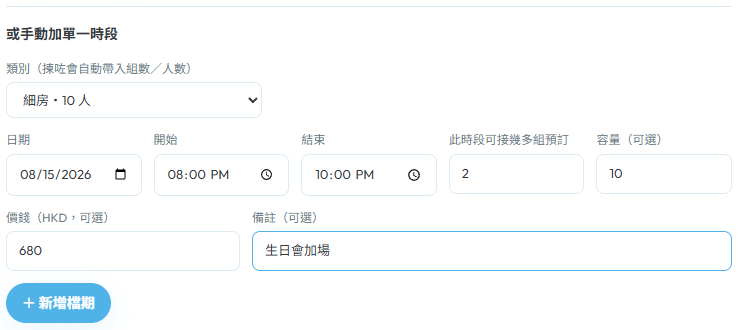
For a festive special session or a one-time slot, you don't need to touch your weekly templates. Just add a single one-off slot.
- •On the "⚡ Tools" tab, use the "Add a One-off Slot" form
- •Pick the date, time, quantity, capacity and price (or pick a category to auto-fill the defaults)
- •Click "Add", and this slot only appears on that one day and doesn't affect your weekly templates
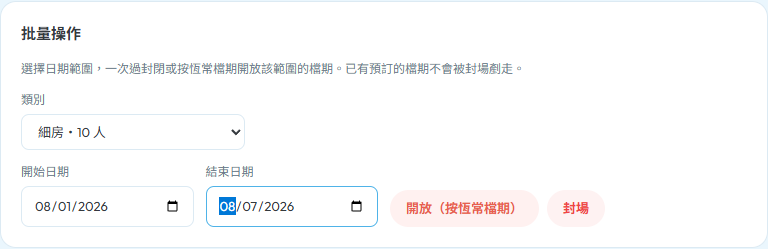
Exceptions: bulk-closing a date range
For renovations, Lunar New Year, or a private buyout, it's fastest to close a whole date range at once instead of deleting day by day.
- •On the "⚡ Tools" tab, use "Bulk Close / Open" and enter a start and end date
- •Click "Close", and unbooked slots in that range are removed. Already-booked slots are left untouched, and you'll be told which ones need follow-up
- •To reopen that range later, use the same form and choose "Open", and the system re-fills it based on your weekly templates
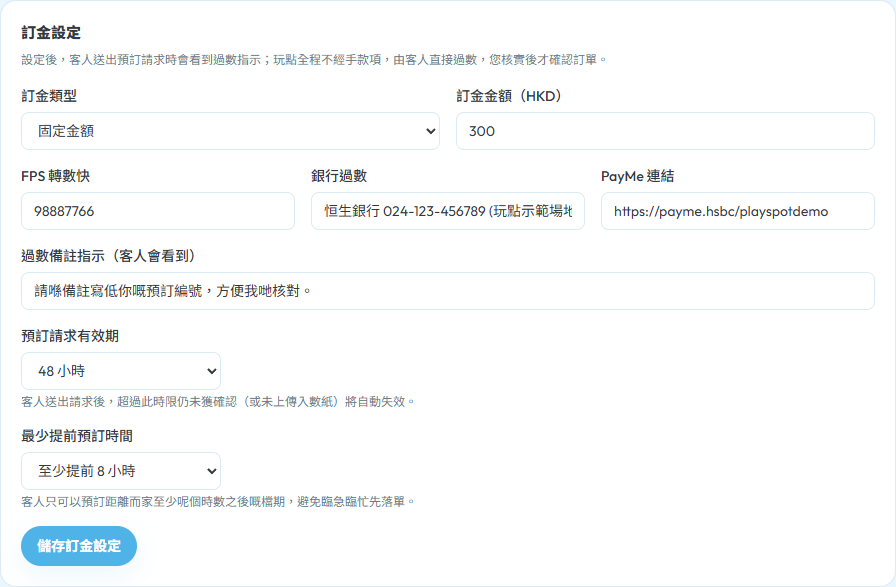
Set up deposits, hold time, and minimum notice
These settings are key to preventing no-shows. ⚠️ Playspot never handles any money. Guests pay you directly, and you confirm the booking after verifying it.
- •Set "Deposit Type" to "None" / "Fixed Amount" / "Percentage of minimum spend"
- •Fill in your FPS / bank transfer / PayMe payment details, and guests see these instructions as soon as they submit a request
- •"Booking Request Validity" (hold time): the guest's slot is held the instant they submit a request. If you haven't confirmed by this deadline it releases automatically. Choose 3 / 6 / 12 / 24 / 48 / 72 / 168 hours
- •"Minimum Notice": blocks last-minute bookings. Choose 0 / 2 / 4 / 8 / 24 / 48 hours, for example set 8 hours and guests can't book a slot starting within the next 8 hours
Grab your public booking link and put it in your Instagram bio
Every venue has its own public link, and guests can click it to view availability and book directly, without needing to ask you first.
- •The "📅 Availability" tab has a "Share Booking Link" section at the top
- •Click "Copy Link" and paste it into your Instagram bio, WhatsApp status, or Facebook page
- •When a guest clicks the link, they land straight on your venue page's booking section

What the booking flow looks like for guests
Understanding what guests see makes it much easier to understand why requests show up the way they do in your inbox, and to reply confidently.
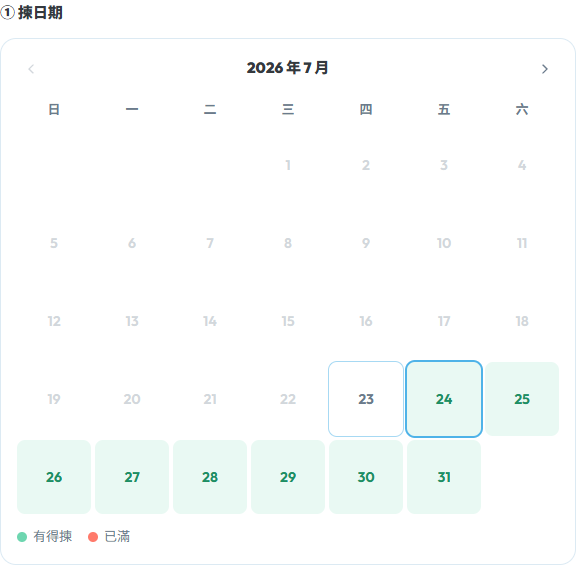
- •Guests open your venue page or your share link, see an availability preview, click "See all availability" to reach the booking page, and pick a date first (showing which days still have space)
- •They then pick a time slot (showing how many spots remain), fill in contact name, phone, party size and notes, and submit the request
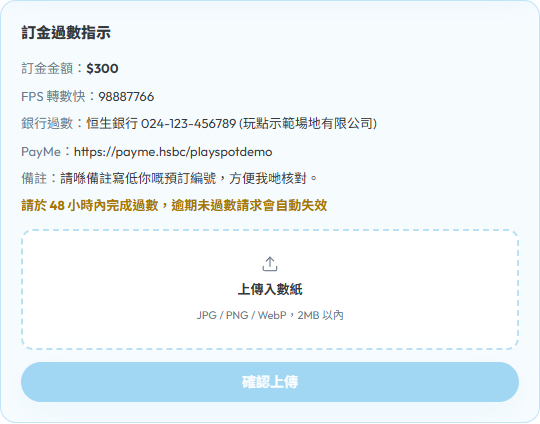
- •If you require a deposit, guests are taken to a confirmation page after submitting, and that's where they see the payment instructions (FPS / bank / PayMe) and upload their proof of payment
- •The instant a guest submits, their slot is held for them (pending status) while they wait for your confirmation
Inbox: verify deposit → confirm → reply on WhatsApp
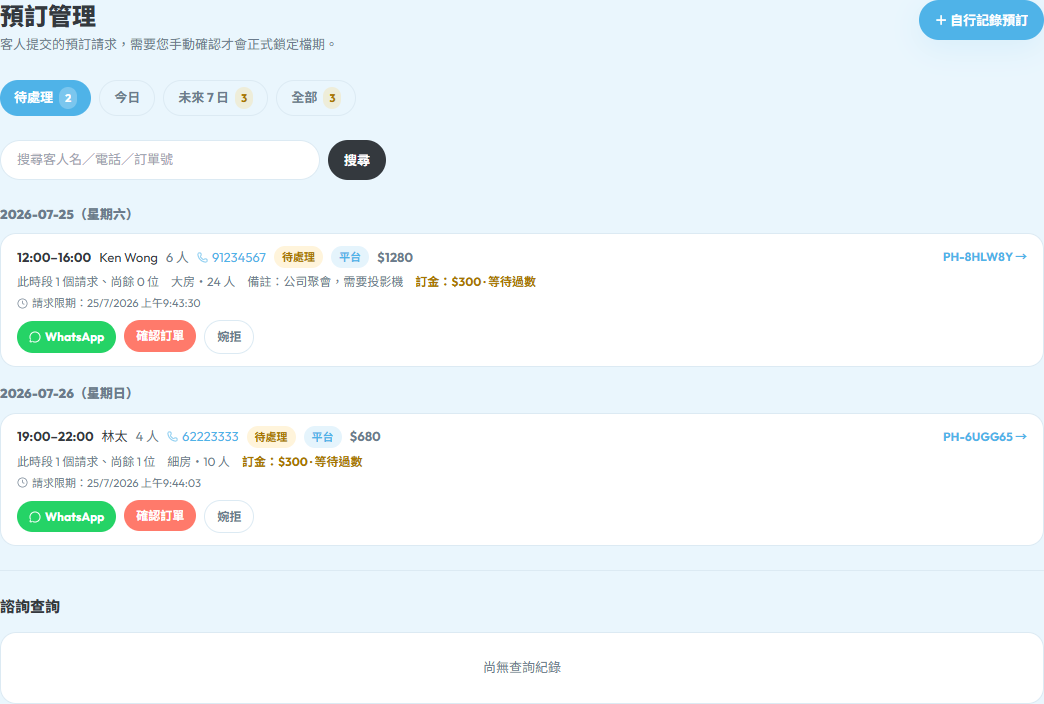
Guest requests show up instantly under the "Pending" tab of Bookings. This is your everyday core workflow.
- •The inbox has four statuses: Pending / Confirmed / Declined / Expired, plus Cancelled
- •If payment proof was uploaded, click "View Proof" to check the amount, then click "Verify Deposit" if it checks out
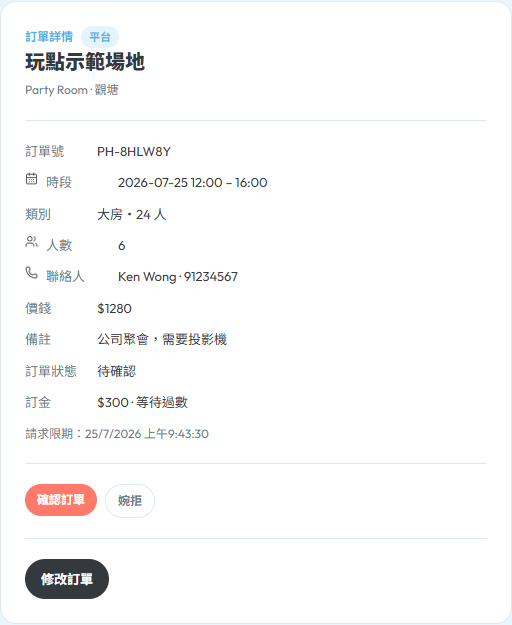
- •Click "Confirm Booking" to lock the slot in for good (you'll be told how many other pending requests are competing for the same slot). Click "Decline" to release the spot automatically
- •Each request in the inbox list has a "WhatsApp" button. One tap opens a chat with the guest to reply directly, no need to look up their number (click into a request to see full details and confirm / decline / edit)
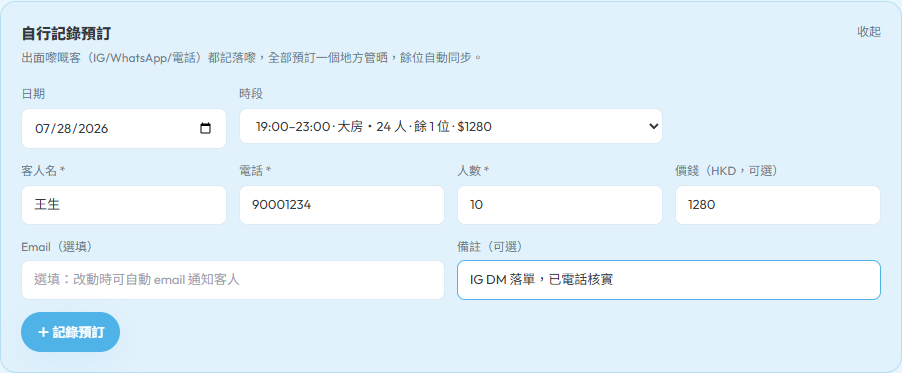
- •Got a booking by phone or WhatsApp outside of Playspot? Open that slot and click "+ Add Booking" to record it manually, and it shows up on the same calendar as platform bookings, with no risk of double-booking
Quick Glossary
A few new terms you'll come across the first time, explained here in one place.
| Category | A room type: the different kinds of space at your venue (e.g. large room / small room), each with its own quantity, capacity and price. |
| Weekly Template | Tells the system which weekdays and hours you're open. Set it up once and the system lays out future availability for you every week. |
| Slot | An actual bookable time window (with a date, time, and quantity). |
| Pending | A guest has submitted a booking request that you haven't confirmed or declined yet. The slot is already held for them at this stage. |
| Confirmed | A booking you've confirmed, so the slot is officially locked in for that guest. |
| Expired | The guest didn't pay within the hold window, or you didn't confirm in time, so the system automatically released the slot. |
| Hold Time | How long a slot is held for a guest after they submit a request, while you confirm or they complete payment. |
| Minimum Notice | Guests can only book slots starting at least this many hours from now, to avoid last-minute requests. |
| Holidays as Sunday | Once enabled, public holidays are automatically treated as Sundays for scheduling purposes, using the official government holiday list. |
FAQ
Could the same slot get double-booked?+
No. Available spots = total quantity − confirmed − pending. The instant a guest submits a request, their spot is held, and the available count updates immediately for everyone else, so two guests can never both believe they've booked the same spot.
Could someone else "grab" a slot while a request is still pending?+
No. "Pending" itself already holds the spot (a soft hold). It only releases automatically if you decline it, or if the hold window passes (guest didn't pay / you didn't act in time). No other guest can ever "grab" a spot that's already pending.
How are public holidays handled?+
You can enable "Treat holidays as Sunday" and the system will use the official GovHK public holiday list to automatically schedule holidays as if they were Sundays, with no need to update this manually every year.
What if a guest wants to reschedule or cancel?+
Guests can cancel their own upcoming bookings under "My Bookings", which releases the slot automatically. To reschedule, ask them to cancel the original booking and submit a new time slot, or you can chat with them on WhatsApp from the inbox and adjust it manually.
How do I add my own phone bookings?+
Open that time slot and click "+ Add Booking", then fill in the guest's name, phone number, and party size. It appears on the same calendar as platform bookings, with no conflict.
Can I skip requiring a deposit?+
Yes. Set the deposit type to "None" and guests can still submit booking requests with no deposit required. Your confirmation is all that's needed.
How do I pause taking bookings?+
To pause a specific date range, use "Bulk Close" to remove availability for that range. To pause indefinitely, stop generating new weekly templates, or deactivate all your existing templates.
Will my data be locked away when the free period ends?+
Nothing is ever deleted. If you haven't upgraded once your free offer period ends, scheduling features switch to "read-only": you can still see all your existing slots, bookings and settings, but can't add or edit anything until you upgrade, which restores full editing instantly.
Still have questions?
Get in touch and we'll walk you through your first setup, step by step.